
How to Use Dynamic Columns On A Product Category

This overview showcases how to use dynamic columns to efficiently narrow down product options in Category lists on Chamfr.com.
Introduction
You’ll see how customizing columns and applying filters streamlines your product selection process.

Open Column Editor
Click the ‘Edit Columns’ text to customize which column attributes are displayed in the list for better searching and viewing available options.
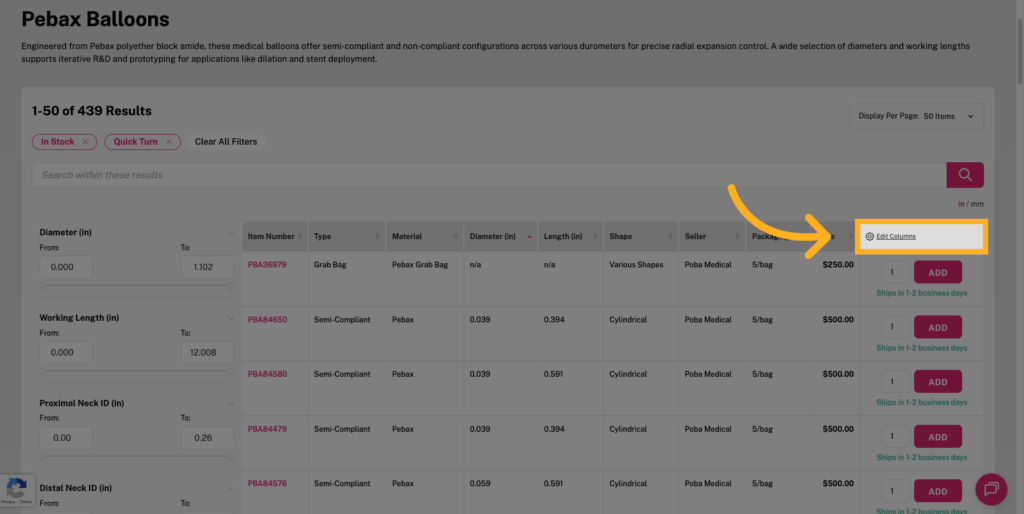
Filter Columns by Available Attributes
Search available columns to add more data onto the table.
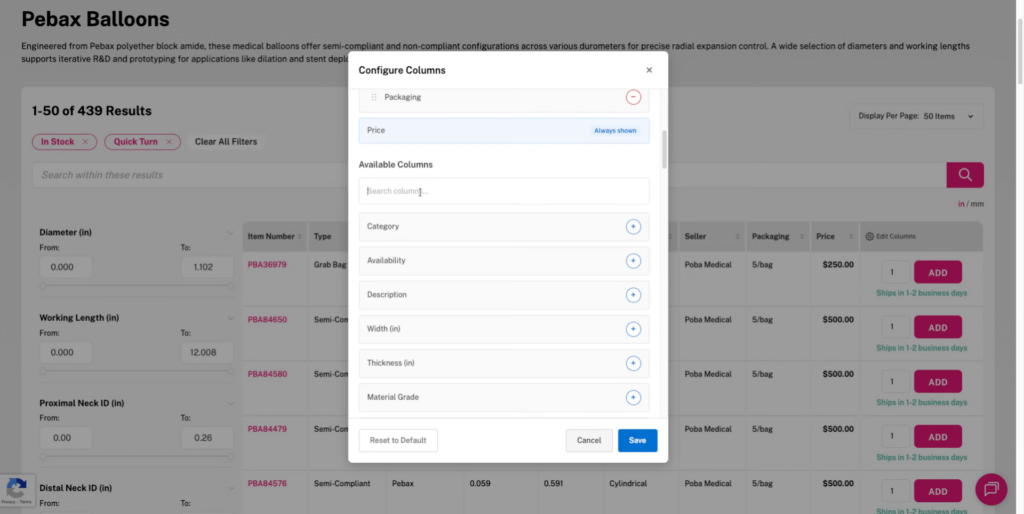
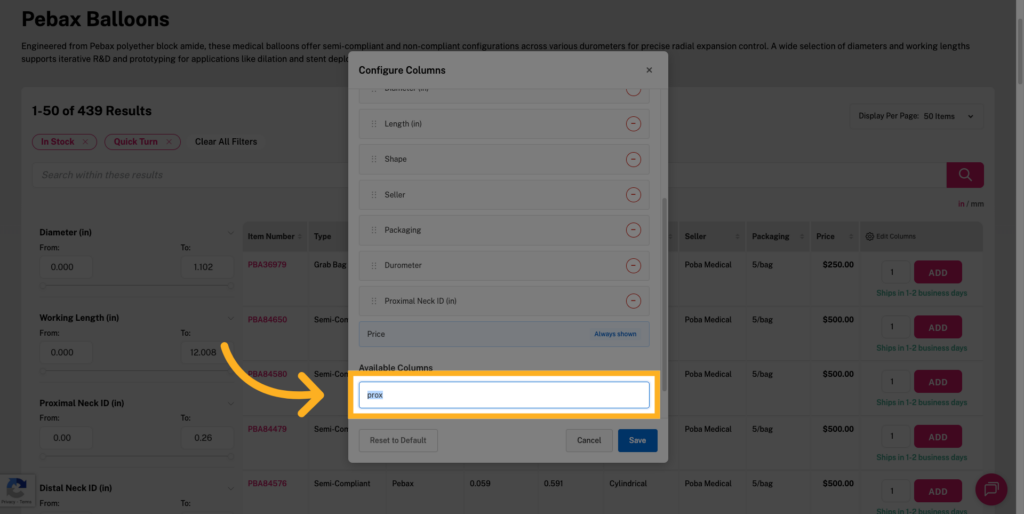
Search For Available Columns example
Begin typing in the search field to filter columns related to available attributes for precise customization.
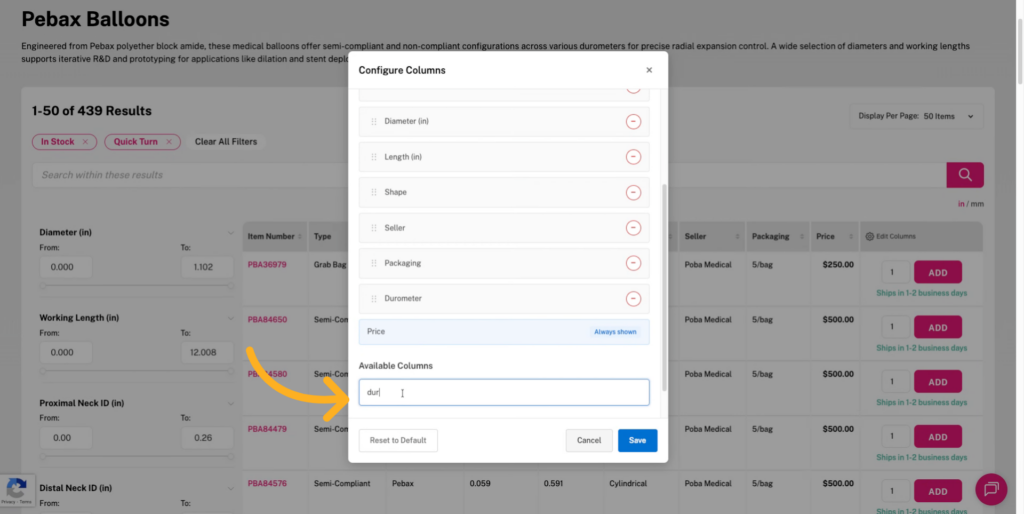
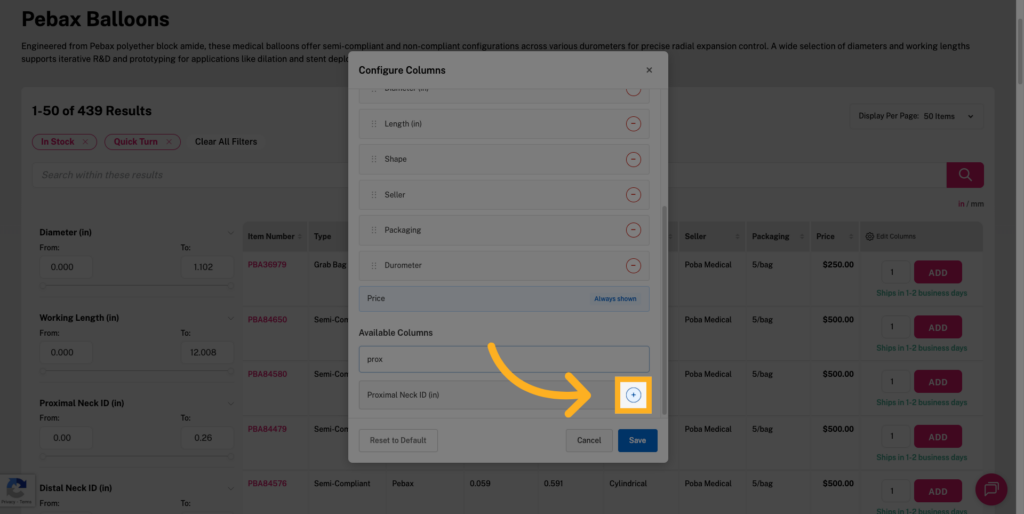
Add Filtered Column
Click the Add column button to include the filtered column in your product list display for enhanced data visibility.
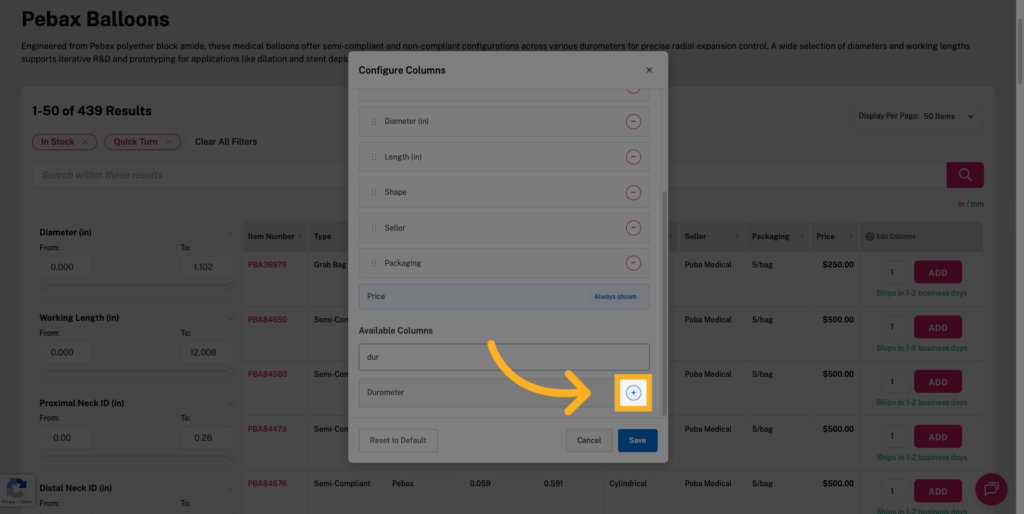
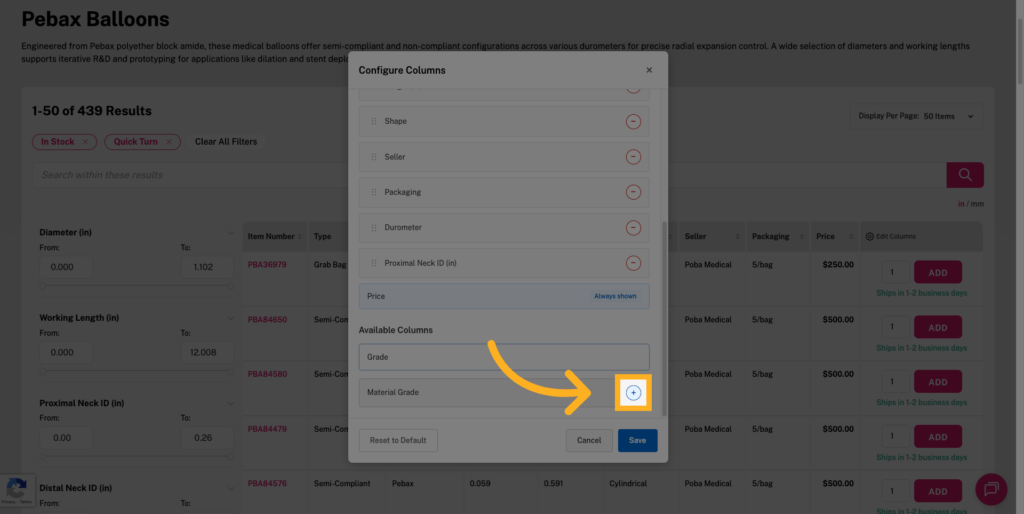
Search additional columns to add more data
Click and search again to add additional attributes and ensure it appears in your product list display.
Add Filtered Column
Click the Add column button to add the attribute column to your product list for more detailed information.
Add Several Columns
Multiple additional columns are supported in this view on the Product Listing Page.
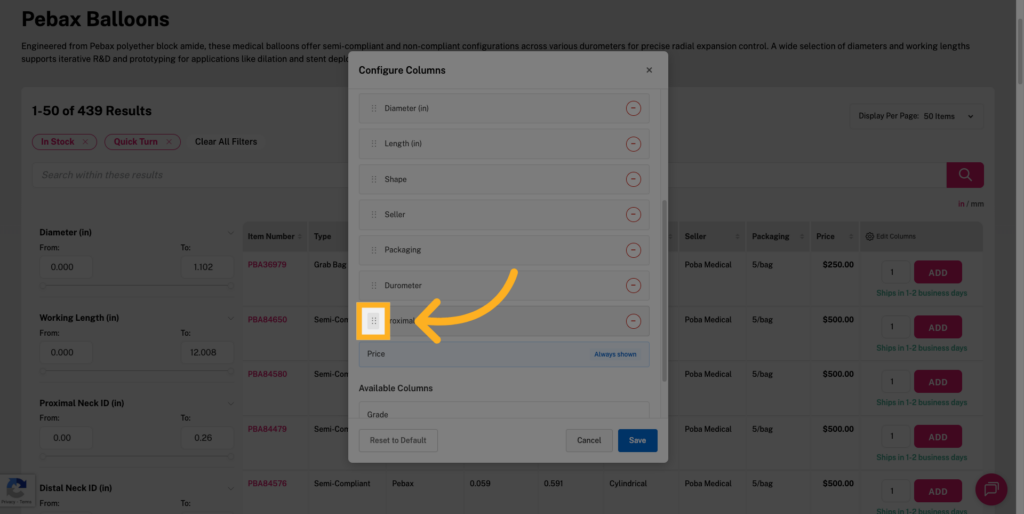
Change order of columns
Hold down on the “⋮⋮” icon to move this column left (up) or right (down) on the table view.
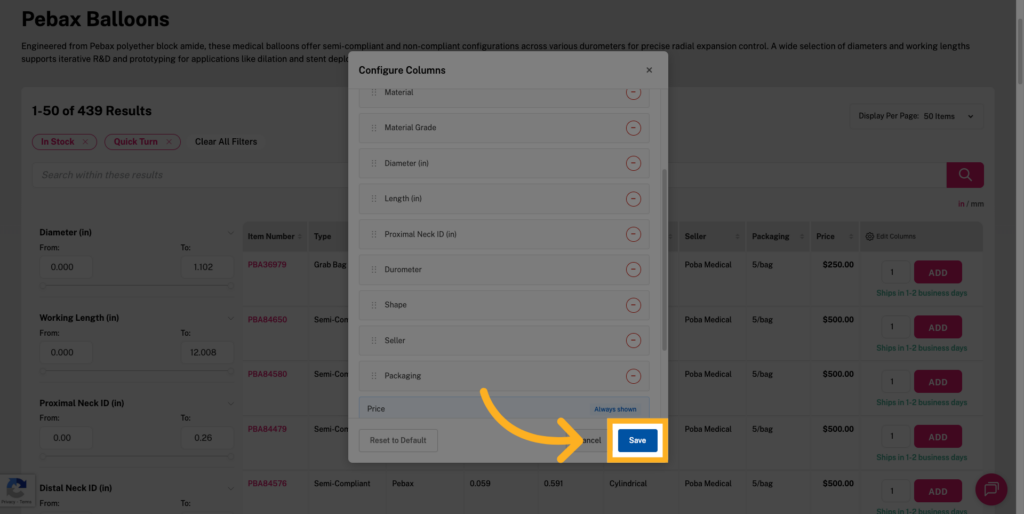
Save Column Configuration
Click the Save button to apply your customized column settings and update the product list view accordingly.
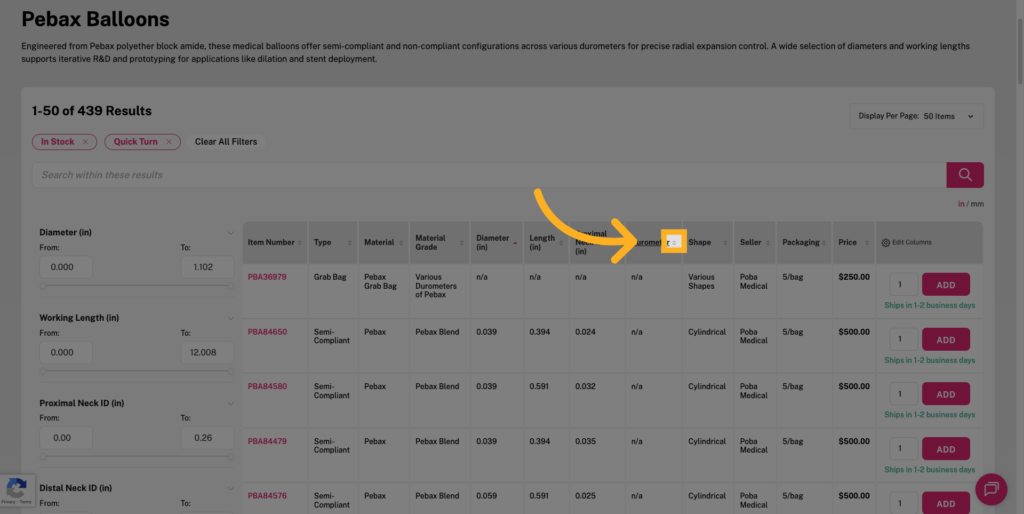
Sort on column header
Click to change the sort order of the products in the table.
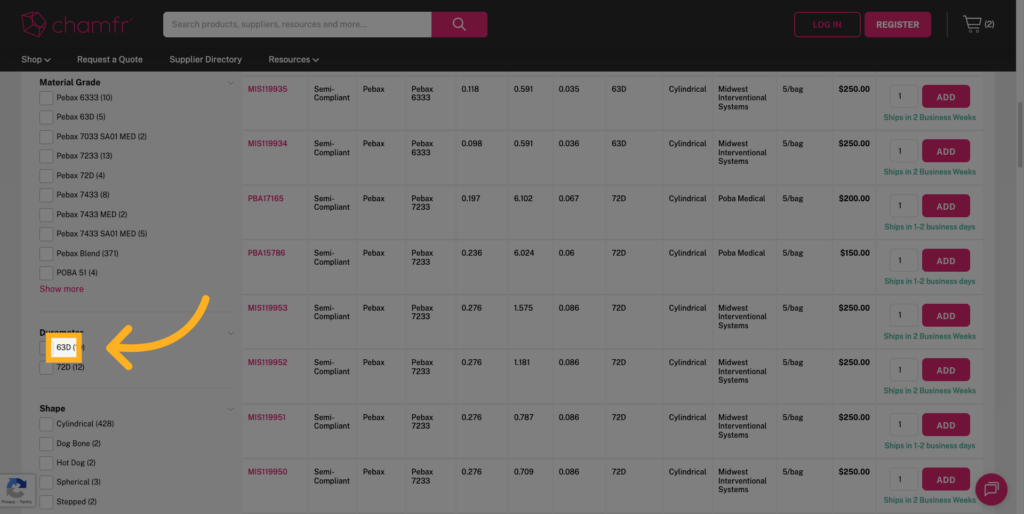
Use filtered search to find what you are looking for in the list
In this example, click the “63D” grade option to filter or view products with this specific characteristic.
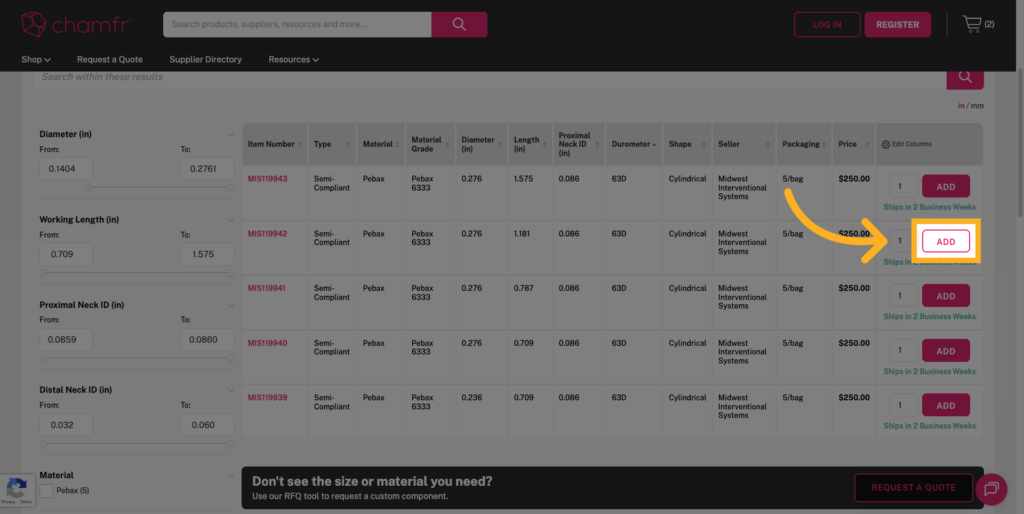
Easy add to cart
Click the ‘ADD’ button to add that product sku into your cart.
This overview example illustrated how to customize dynamic columns and use search filters to efficiently narrow down Pebax Balloon product options. You can now tailor your product views and quickly find the specifications that matter most to your medical device research across all our categories and product listing pages.