

How to Use Project Lists

This brief feature overview highlights how Chamfr streamlines project management and offers a simple way to share lists with coworkers and purchasing agents.
Access Project List
Click the Project List to view your existing projects and manage components efficiently.

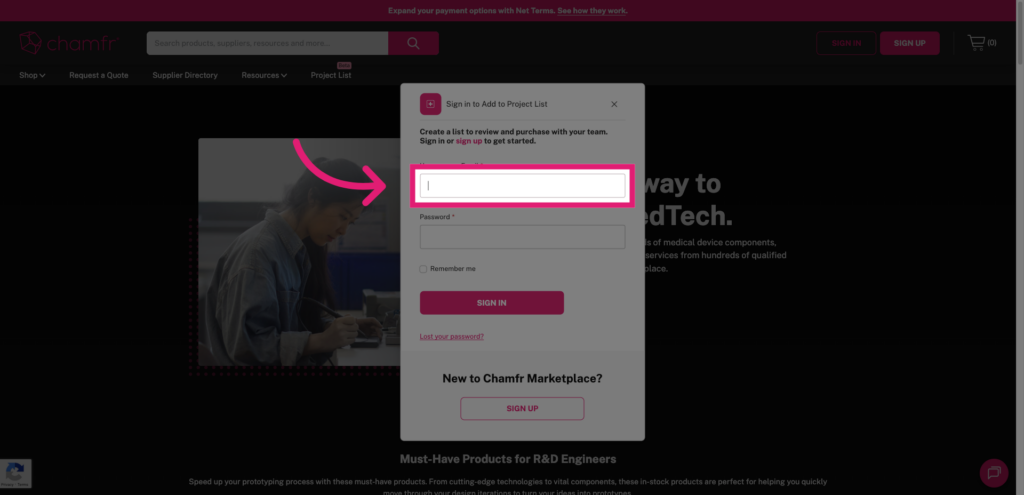
Enter Username or Email
Click the Username or Email field to begin logging into your Chamfr account securely.
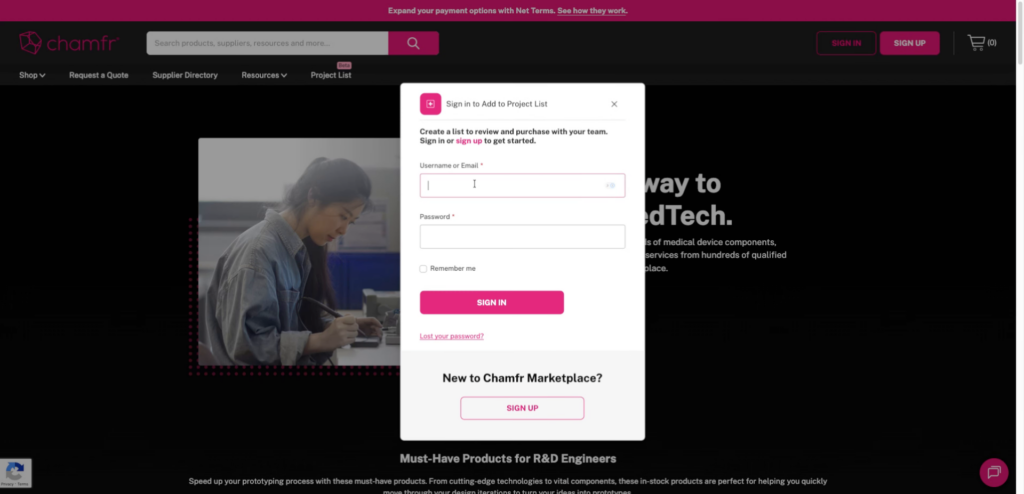
Enter Password
Fill in your password to authenticate your access to the platform.
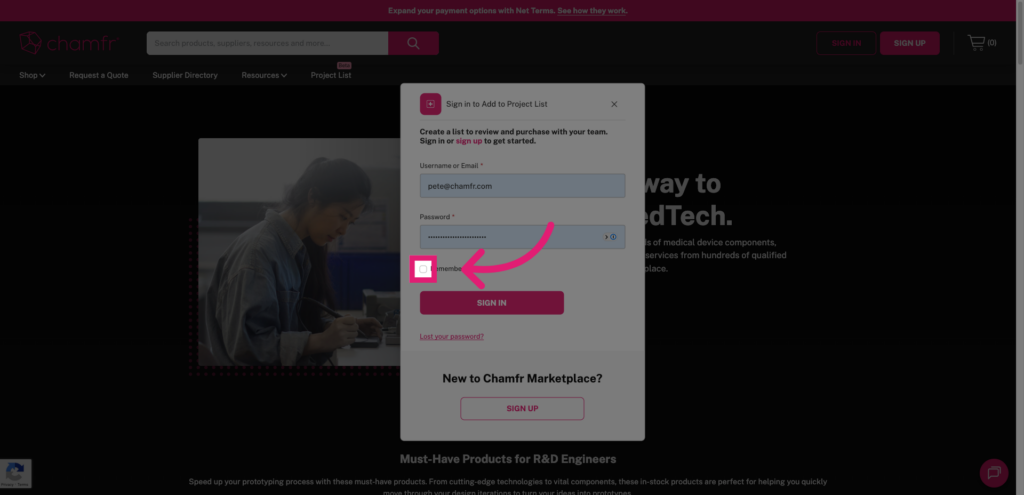
Enable Remember Me Option
Click Remember me to stay logged in on this device for faster access next time.
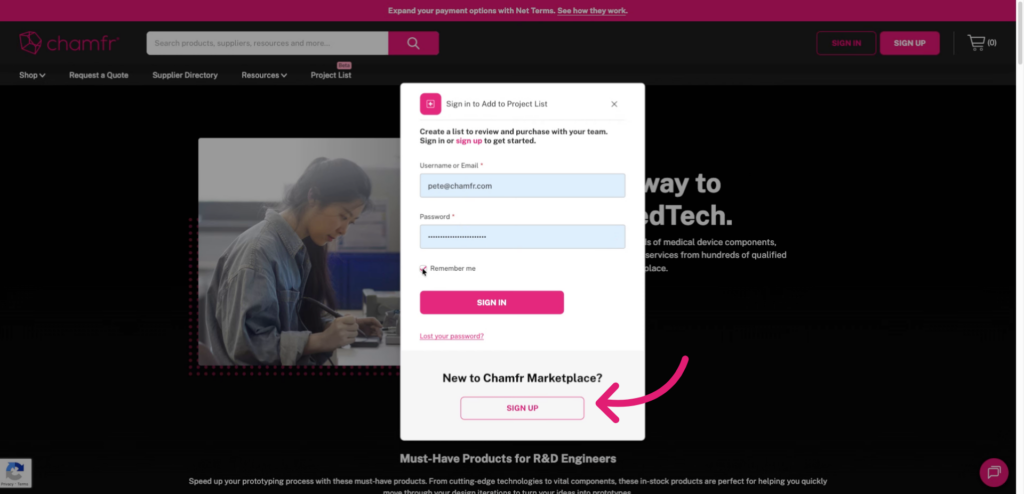
Don’t have an account with Chamfr.com? Sign Up to Unlock Features Like This
Quick sign up form and your account is ready immediately.
Initiate New Project List
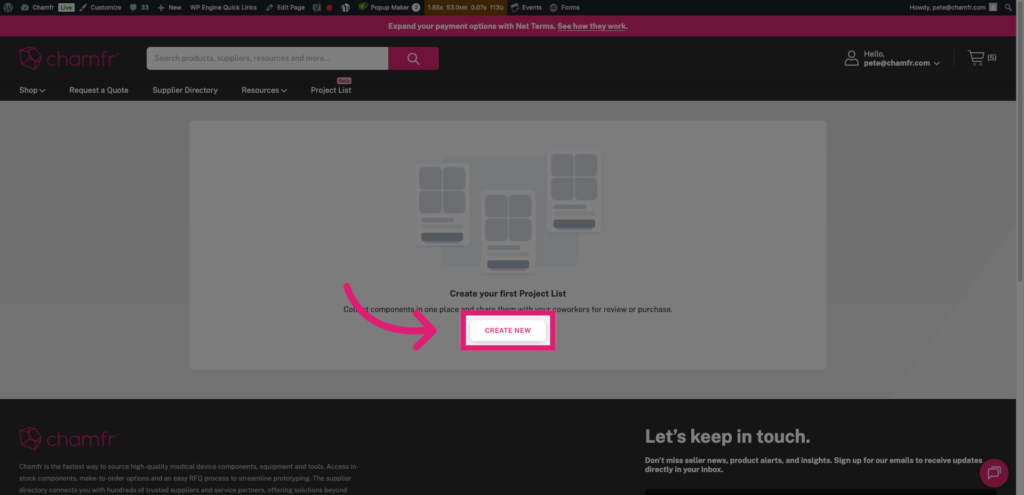
Click ‘Create New’ to start building a new project list tailored to your needs.
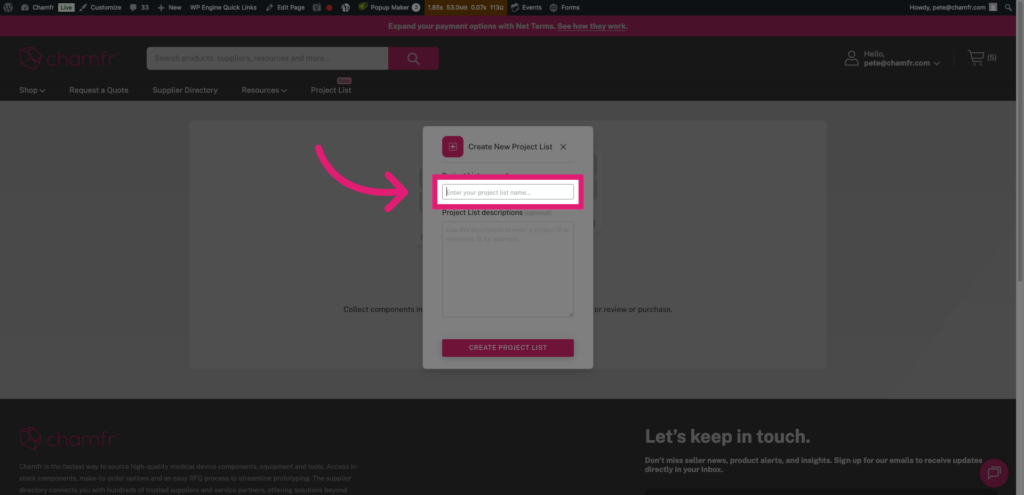
Select Project List Name Field
Click the Project List name field to specify a name for your new project list.
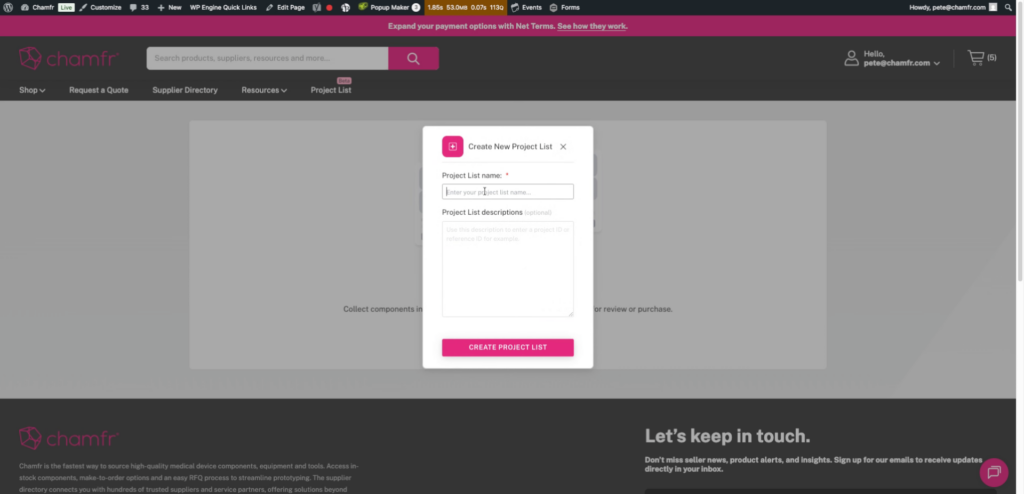
Name New Project List
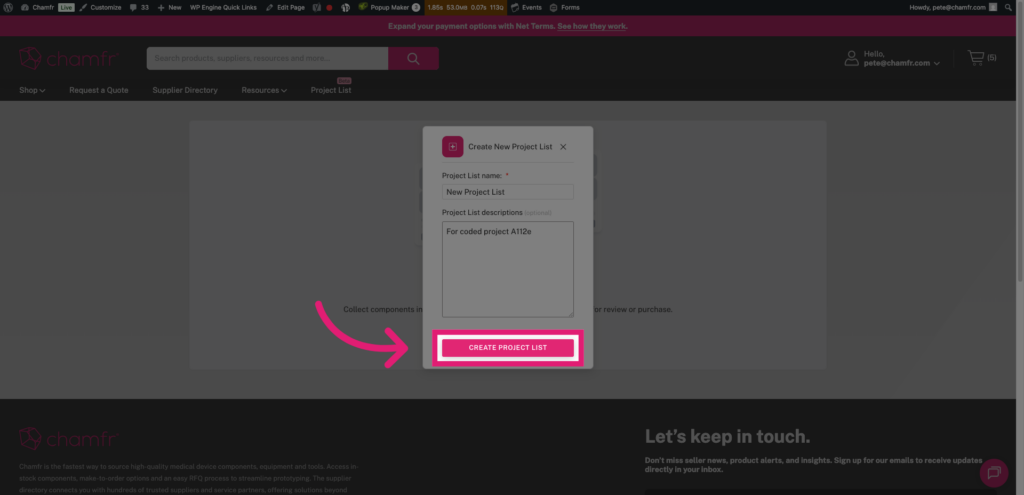
Fill in New Project List as the name to identify your project clearly.
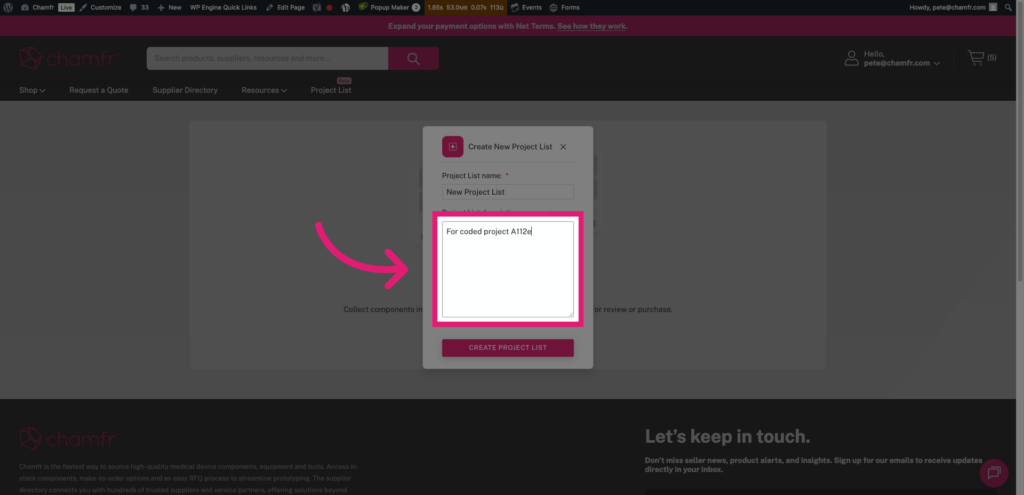
Add Project Description
Fill the description field with details like ‘For coded project A112e’ to provide context.
Create Project List
Click ‘Create Project List’ to save your new project and begin adding components.
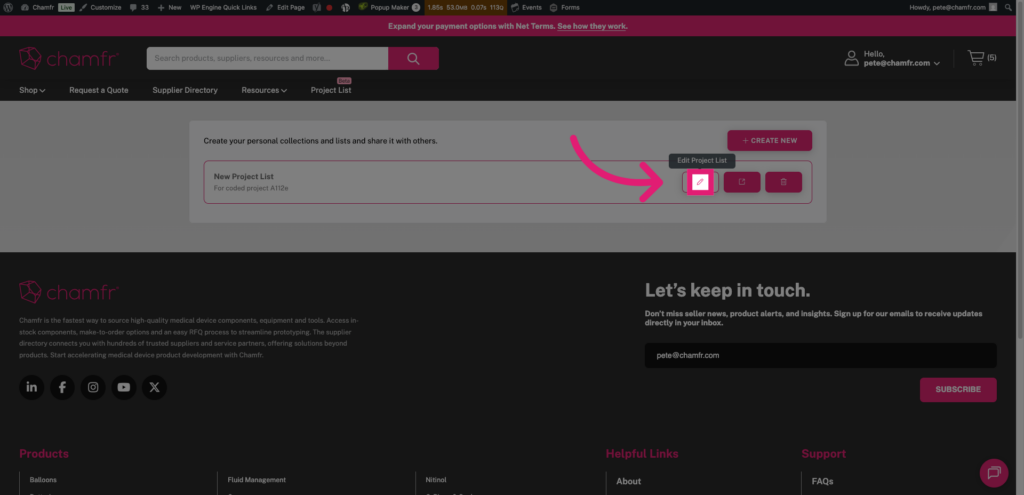
Navigate Within Project Lists
Click here to explore options within your project lists and manage your selections.
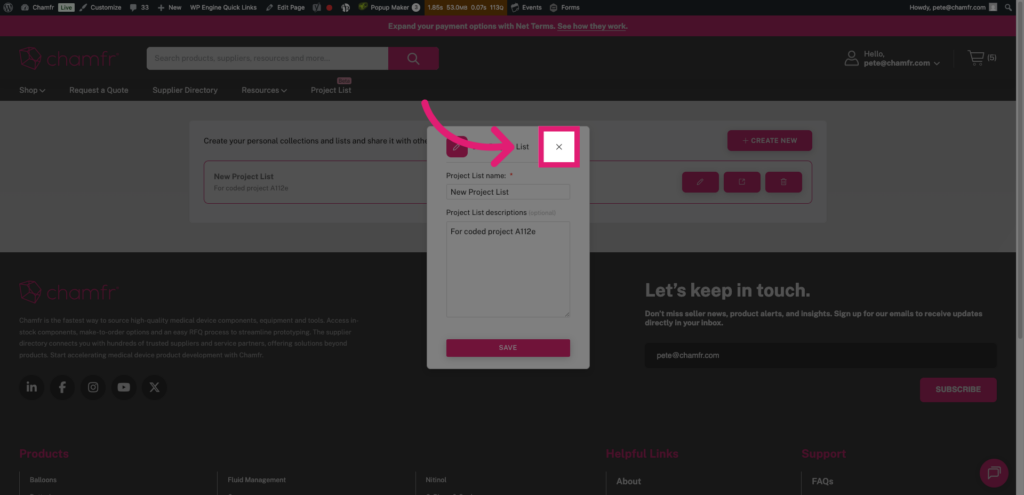
Close out
Click the ‘X’ to exit out of the Project List edit screen.
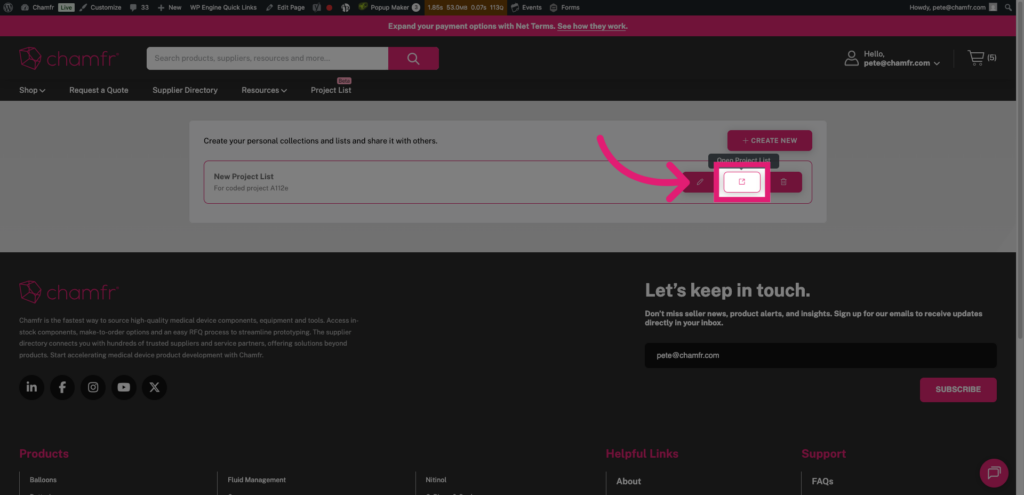
Open Project List Menu
Click here to open the project list menu and review the SKUs in your list or add to it if empty.
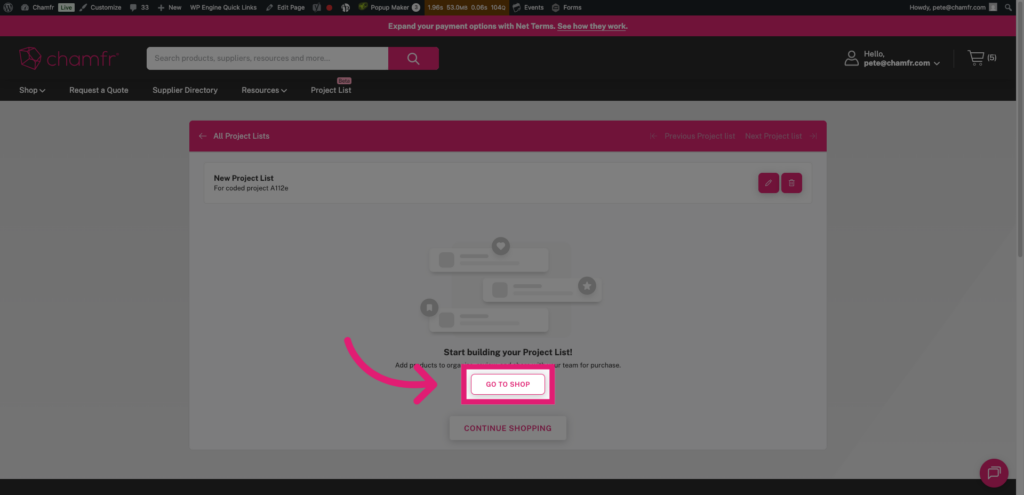
Go to Shop Section
Click ‘Go to Shop’ to browse available medical components for your projects.
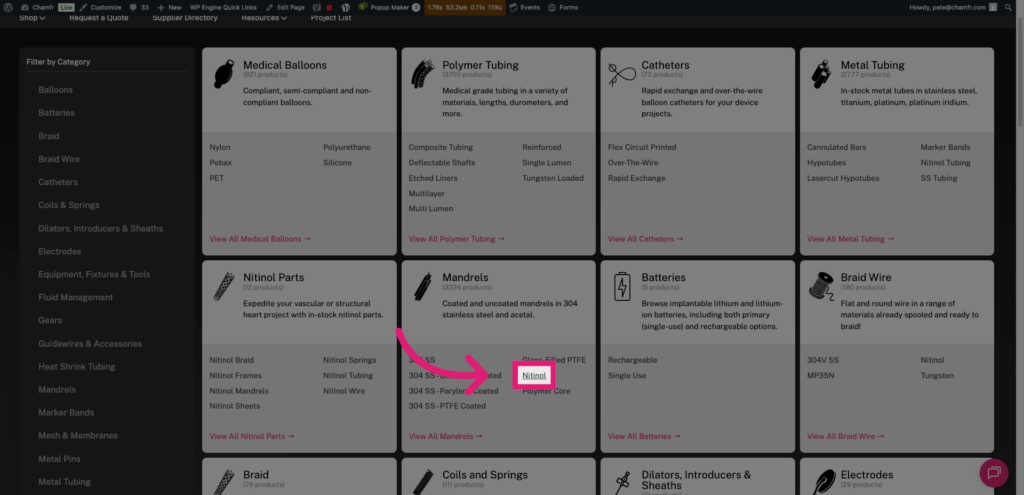
Select A Category to see products available
In this example, the user clicks ‘Nitinol’ to view specialized components in the Mandrels category.
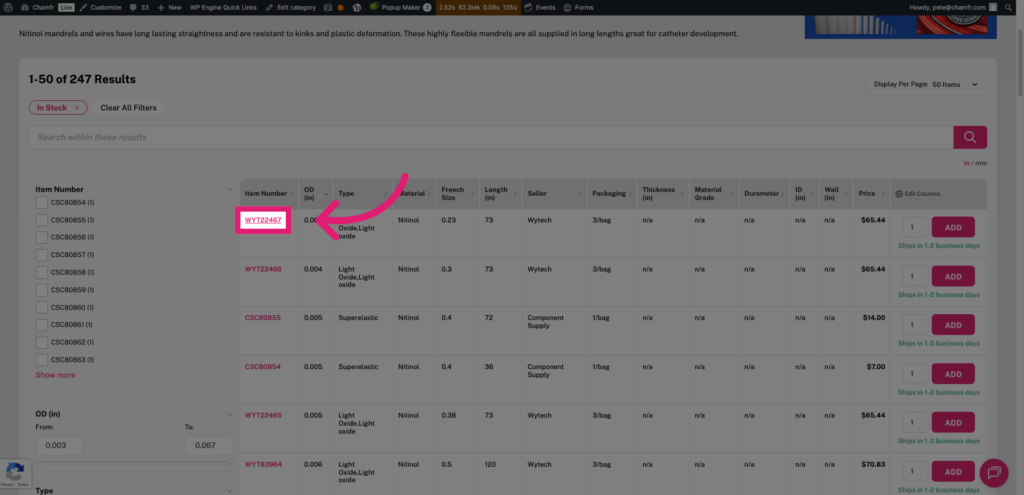
Choose Specific Item Number to see the details for this SKU on the product detail page.
In this example the user clicks WYT22467 to examine detailed specifications of this SKU.
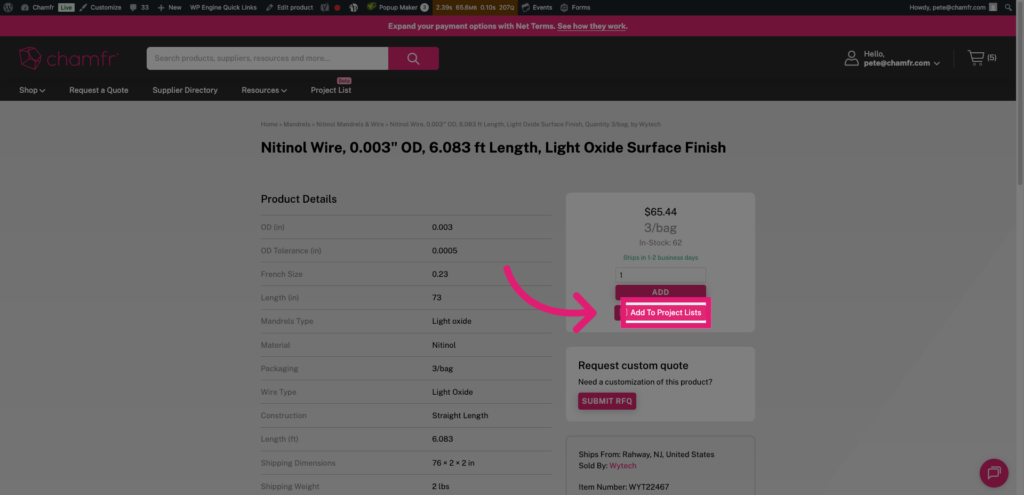
Add Item to Project Lists
Click ‘Add To Project Lists’ to include this component in your project list.
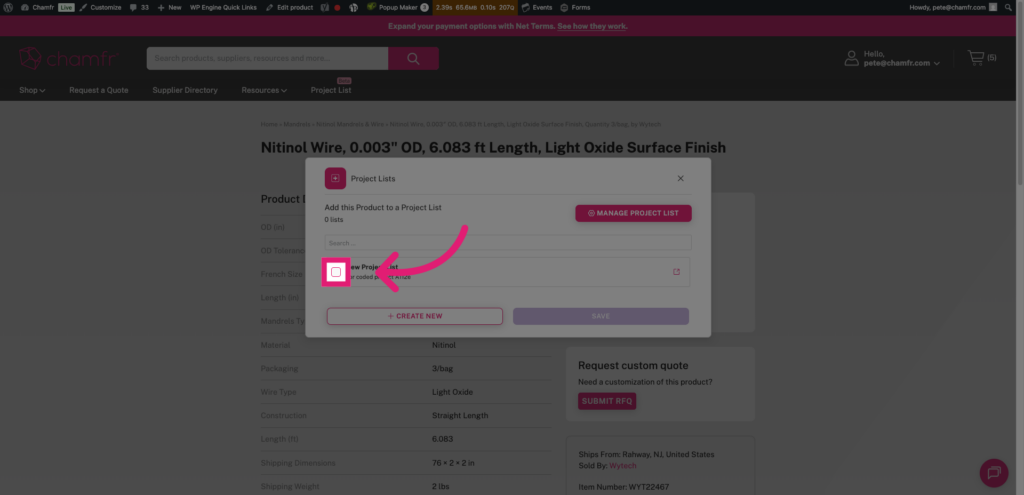
Select Project List
Click the appropriate check box to add the SKU to that list.
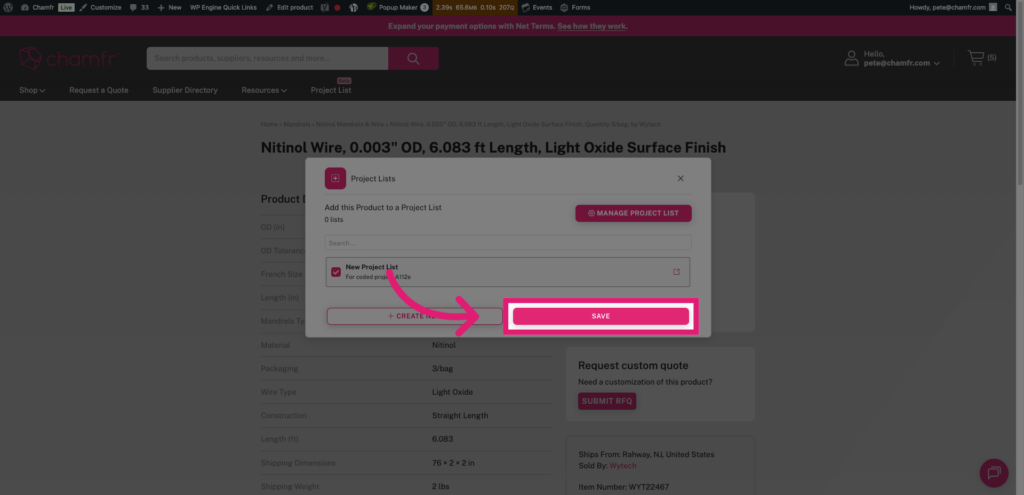
Save Selection
Click Save to confirm and update your project list accordingly.
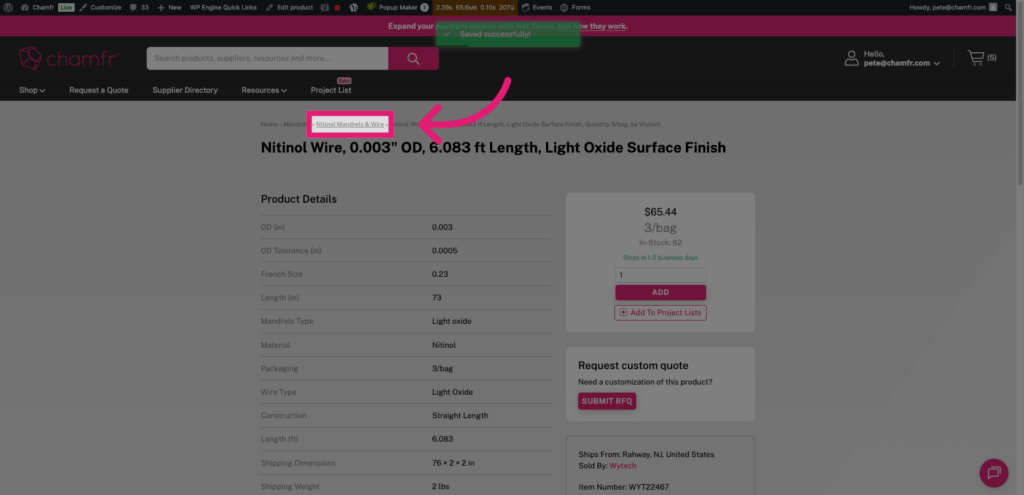
Easily add more components from the same category
Click the breadcrumb to continue browsing related components. Or, hit the ‘Back’ button on your browser.
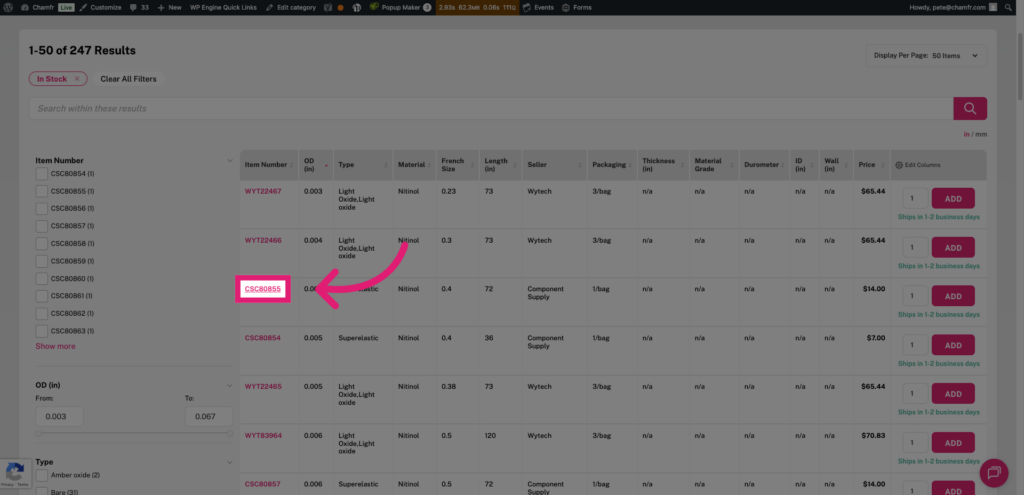
Select Another Item
In this example the user clicks CSC80855 to view details of this additional Nitinol mandrel option.
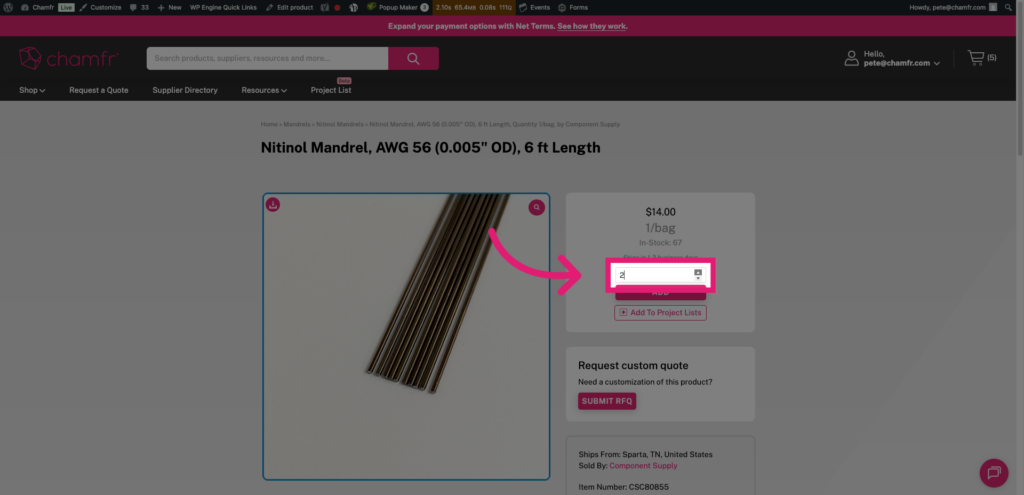
View Product Details
Easily change quantity based on your needs.
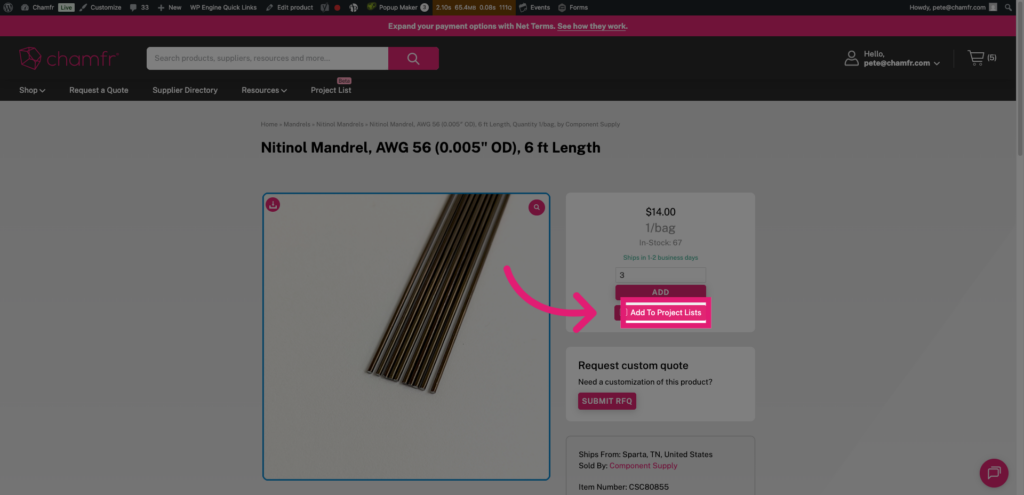
Add to Project Lists
Click Add To Project Lists to include this SKU in your project components.
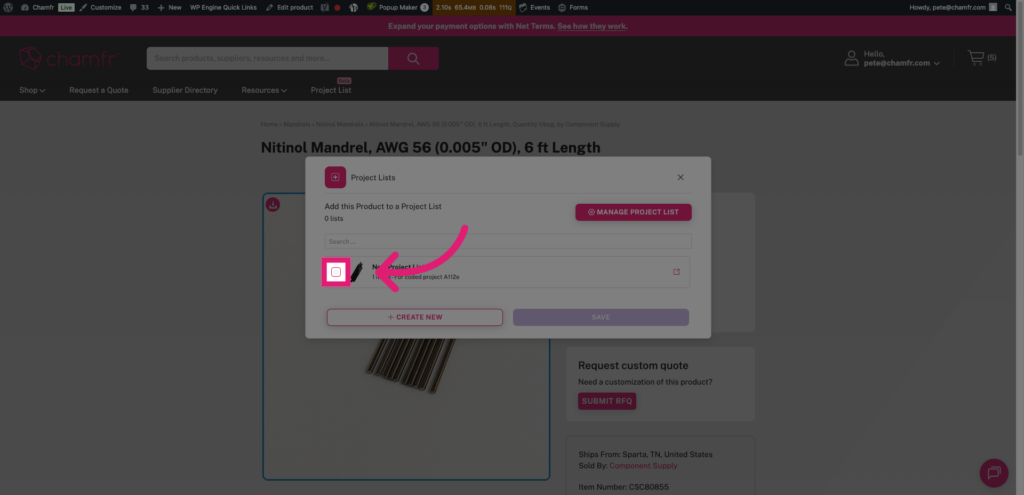
Add to Project List
Click the checkbox to add the SKU to the appropriate project list.
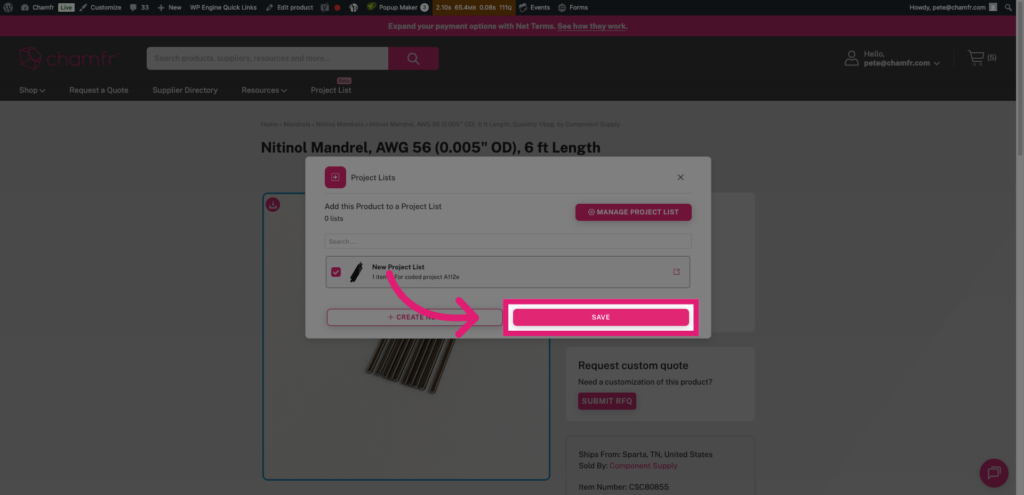
Save Selection
Click Save to confirm and update your project list with the specified quantity.
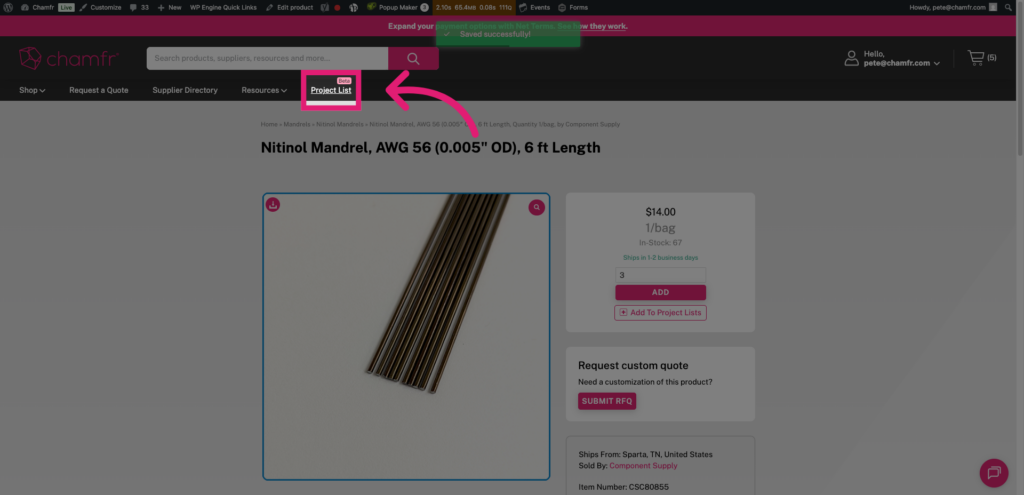
Return to Project List Overview
Click Project List to go back to your main project management dashboard.
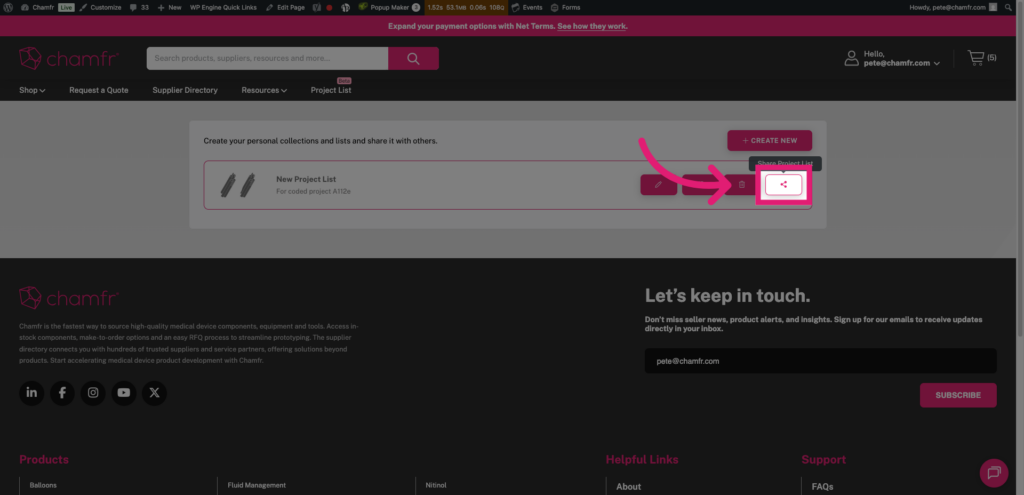
Share Project List
Click the Share Project List icon to collaborate and share your project details with others.
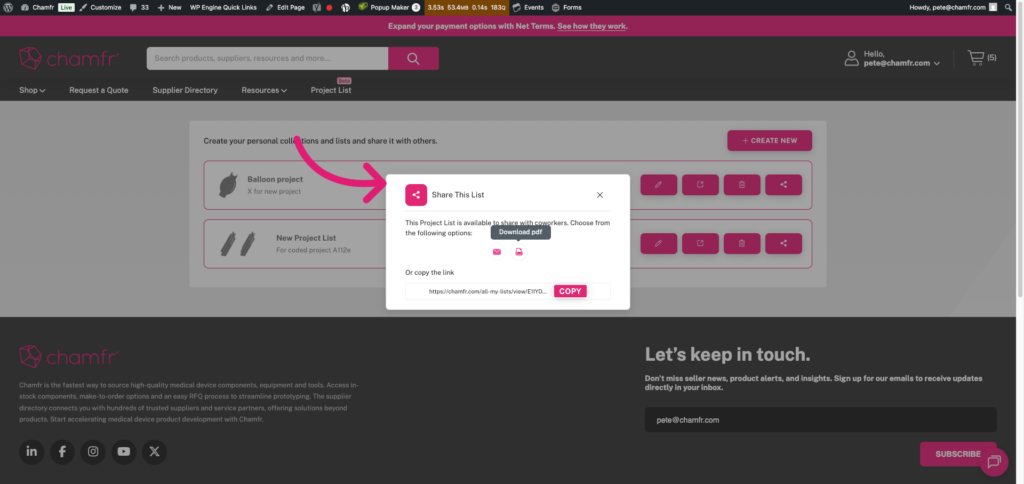
Share This List
Users are able to send via email, download a pdf or copy the link to the Project List. Commonly, users paste the link into Teams for their coworkers to review.
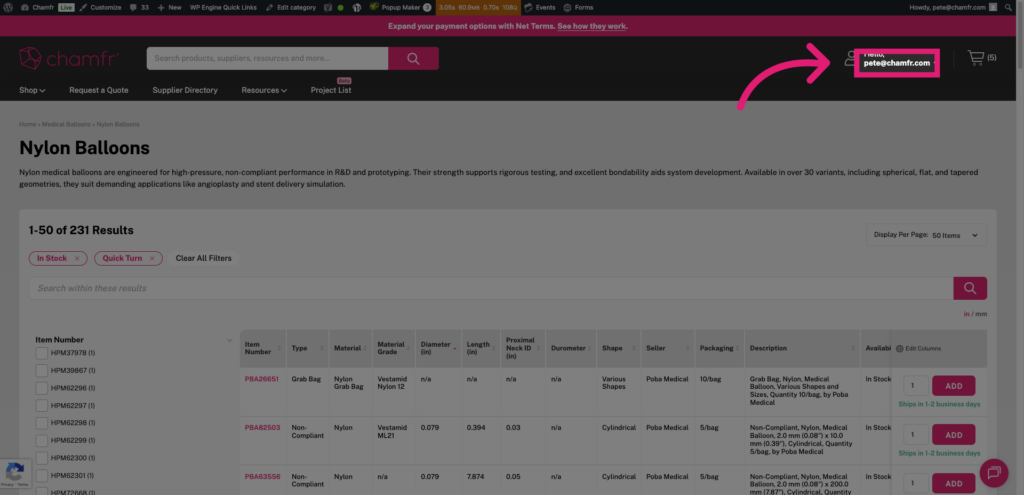
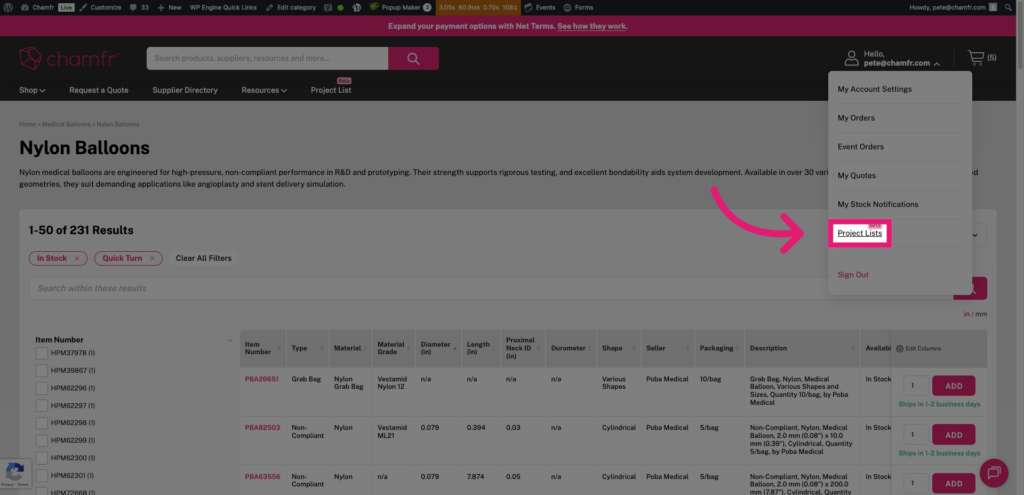
Access Project Lists via Account Management
Click on your user name to view a list of available options.
Open Project Lists Section
Click Project Lists to navigate to your collection of project lists for management.
This overview showcased how Chamfr simplifies managing medical device projects by creating and sharing project lists, selecting components, and customizing quantities. Start your own project today to streamline development and collaboration.